
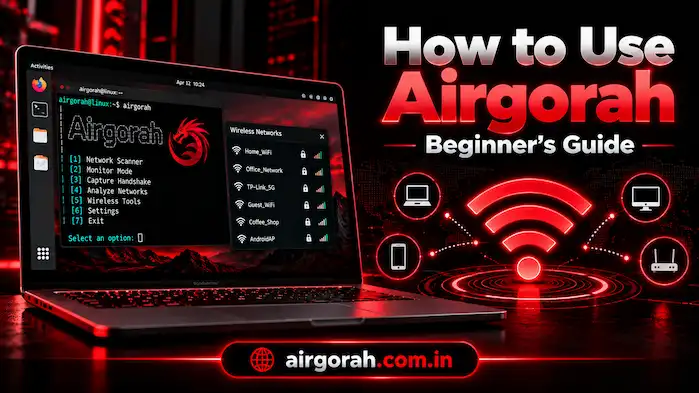
How to use Airgorah depends on your Linux system and Wi-Fi hardware. Airgorah is a wireless security tool that helps users inspect networks and run supported tests. Before you begin, check the system needs and prepare a suitable test network. This guide explains the setup, main features, common problems, and safe ways to use the tool.
Airgorah helps users inspect wireless networks and run supported security tests. To learn more about its purpose, features, and system needs, read our guide to the Airgorah wireless security tool.
What Do You Need Before Using Airgorah?
Before you start, make sure your system meets the basic needs. Airgorah targets Linux, and some features need extra software or compatible wireless hardware. A little preparation can help you avoid common errors.
A Supported Linux System
First, check your Linux version and the project’s setup notes. Airgorah uses Rust and GTK4, so your system must support the packages needed to run it. If a required package is missing, the app may not start.
A Compatible Wi-Fi Adapter
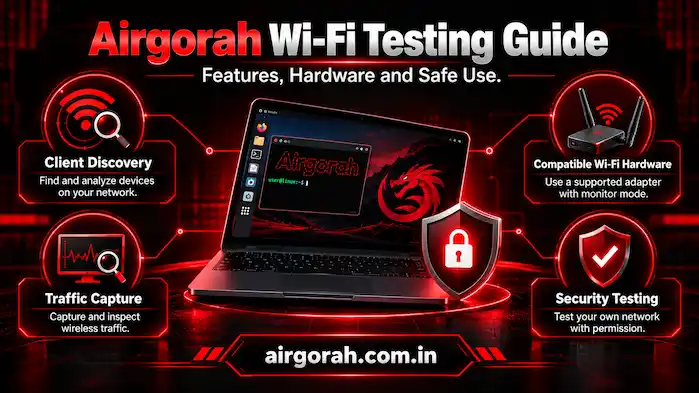
Some wireless tests need an adapter that supports monitor mode and packet injection. These features are not available on every adapter. Check your model and driver before you begin. This step can save time if a feature does not work.
Permission to Test the Network
Use Airgorah only on networks you own or have permission to test. Wireless tests may collect network data, so respect other users’ privacy. Also, choose a test network before you start to avoid mistakes.
How to Set Up Airgorah
A correct setup helps the tool work as expected. Follow the instructions for your version, since the steps may vary by Linux system.
Step 1: Check the Project Files
Start with the project’s original source or release files. Check the version, system needs, and installation notes. Avoid files from sites that do not explain where their downloads come from.
Step 2: Install the Required Packages
Read the setup notes and install the packages that your version needs. Use trusted software sources and your Linux package manager when possible. Do not run commands from unknown sites without checking what they do.
Step 3: Connect Your Wi-Fi Adapter
If your test needs an external adapter, connect it to your computer. Then, check whether Linux can detect it. Some adapters work for normal Wi-Fi but do not support every testing feature.
Step 4: Open the Tool
Start Airgorah using the method given in the project’s instructions. Check that the interface opens without an error. If it fails to start, review the error message and confirm that the required packages are installed.
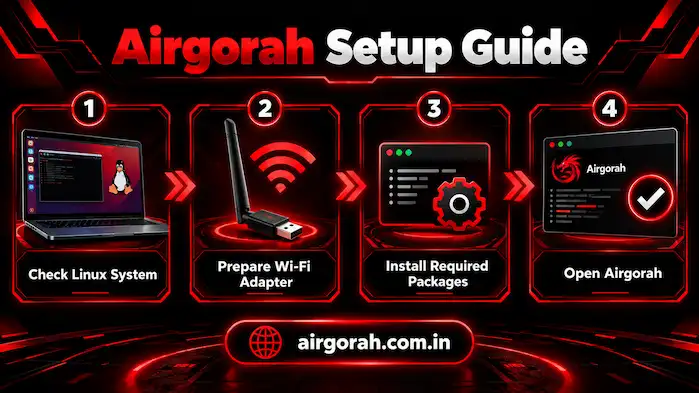
Before you start, make sure your Linux system meets the software and hardware needs. Follow our Airgorah download and installation guide to review download options, prepare your system, and troubleshoot common setup issues.
How to Use Airgorah’s Main Features
Airgorah offers several features for wireless network checks. The options you can use depend on your system, adapter, and software setup.
Find Devices on a Test Network
Client discovery helps users review devices on a wireless network. First, select a network you are allowed to test. Then, use the relevant discovery option if it is available in your version. Review the results with care. An unfamiliar device is not always unsafe, as it may belong to a family member or another approved user. Check the device details before you decide what to do.
Capture Wireless Traffic
Traffic capture can help users study wireless activity during an approved test. However, this feature needs suitable hardware and system support. Follow the project’s instructions and avoid collecting data from networks without permission. Captured traffic may include private information. Therefore, keep test data secure and remove it when you no longer need it. Do not share data that could expose other users.
Collect Handshake or PMKID Data
Some versions and setups support handshake or PMKID capture. These data types can help security testers assess Wi-Fi protection. However, the task needs compatible hardware and a suitable test setup. Capture does not guarantee that a password can be found. Results depend on the network and its security settings. Use this feature only as part of an authorized test.
Test Wi-Fi Password Strength
Password testing can help a network owner find weak passwords. For example, a short or common password may be easier to guess than a long, unique one. A strong password can make guessing much harder. Use test data and networks you are allowed to assess. Never assume that a tool can reveal every Wi-Fi password. If you manage the network, use the results to improve its security.
Can Airgorah Test Wi-Fi Password Security?
Airgorah supports tasks that can help users check Wi-Fi security. Yet, it cannot promise access to every network or password. Results depend on the password, wireless security settings, hardware, and test method. If you manage a Wi-Fi network, start with a strong, unique password. Next, use modern router security settings where your devices support them. Keep the router software up to date as well. These steps help protect the network even when you are not running a test. A Wi-Fi security tool should support good network care, not replace it. Always get permission before you test a network.
Common Airgorah Problems and Fixes
Some problems come from missing packages or hardware limits. Check the error message first, then review the setup notes for your version.
Airgorah Will Not Open
A missing package or unsupported system may stop the app from starting. Check that your Linux version meets the requirements. Then, review the error message and install any missing package from a trusted source.
The Wi-Fi Adapter Is Not Detected
Check whether Linux can see the adapter. Next, review the driver and connection. If the adapter still does not appear, check whether it works with your system and whether the driver supports its features.
Monitor Mode Does Not Work
Not every adapter or driver supports monitor mode. Check the hardware details and the project’s instructions. If your adapter lacks support, you may need compatible hardware for that task.
A Test Gives No Results
A test may fail because of the network, hardware, or setup. Confirm that you selected the right test network and that your adapter supports the feature. Then, review any warnings shown by the app. Do not change system settings at random. Instead, test one possible cause at a time. This makes it easier to find the problem.
Can You Use Airgorah on Android?
The main Airgorah project targets Linux, and its standard project details do not confirm a native Android version. Therefore, do not assume that a file labelled as an Android APK is the genuine tool. Android devices may also lack the system access or wireless hardware needed for some features. Check the source and device support before installing an app that claims to offer the same functions.
How to Use Airgorah Safely
Safe use starts with permission and good planning. Before a test, make sure you own the network or have approval from its owner. Then, choose the task that fits your goal and review the tool’s instructions. Keep your system and required packages up to date. Use trusted software sources, and avoid files with unclear origins. Also, give the tool only the permissions it needs. Finally, protect any data you collect during a test. Wireless traffic may contain private details, so store it with care. Remove test files when they are no longer needed.
Frequently Asked Questions
How Do I Start Using Airgorah?
Check your Linux system, install the required packages, and follow the setup notes for your version. Then, confirm that the tool and Wi-Fi adapter work as expected.
Does Airgorah Work on Linux?
Yes, the main project targets Linux. Available features depend on your system, required packages, and wireless hardware.
Can Airgorah Find Wi-Fi Passwords?
It supports password testing for security checks, but it cannot promise access to every network. Results depend on password strength and the test setup.
What Wi-Fi Adapter Does Airgorah Need?
Some features need an adapter that supports monitor mode and packet injection. Support varies by model and driver.
Why Is Airgorah Not Working?
Missing packages, unsupported hardware, or system limits may cause problems. Check the error message and compare your setup with the project’s requirements.
Conclusion
How to use Airgorah starts with a supported Linux system, the right packages, and compatible Wi-Fi hardware. Check the setup instructions before you run a test. Then, use the available features to study networks you are allowed to assess. With careful setup and safe testing habits, you can better understand wireless security and avoid common problems.