
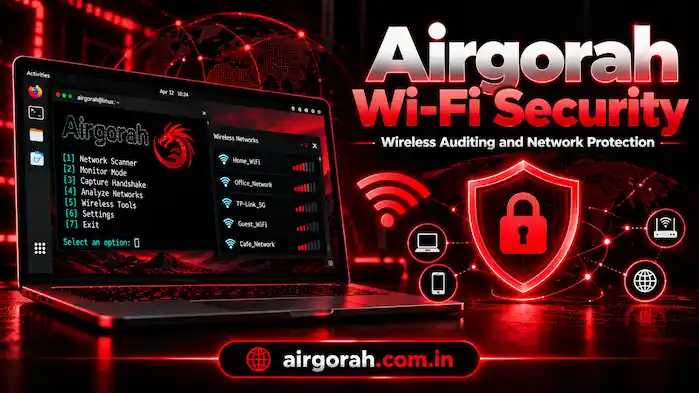
Airgorah Wi-Fi Security testing can help users learn about wireless network security. Airgorah is a Linux-based tool that supports several Wi-Fi auditing tasks. These tasks can help users study network activity and check parts of their security setup. However, results depend on the system, hardware, and test method. This guide explains wireless testing, password safety, hardware needs, and ways to protect your network.
What Is Wi-Fi Security Testing?
Airgorah Wi-Fi Security testing checks how well a wireless network protects its users and data. It can help a network owner find weak settings and improve protection. For example, a test may reveal poor password choices or show which devices connect to a network. These checks should take place on a network you own or have permission to test. Testing another person’s network without consent can violate their privacy and may break the law. A security test does not guarantee that a network is safe from every threat. Instead, it gives users more information about their setup. They can then fix weak points and improve their router settings.
For More Details check & read our Airgorah download guide.
How Airgorah Supports Wi-Fi Auditing
Airgorah is designed for wireless security testing on Linux. It brings several supported tasks into one interface. The features you can use depend on your setup and compatible Wi-Fi hardware.
Client Discovery
Client discovery helps users review devices on a wireless network. This can help a network owner check which devices connect to their router. However, an unknown device is not always harmful. It may belong to a guest, family member, or another approved user. Review the results before you take action. If you find a device you do not recognize, check your router’s device list and ask other users before blocking it.
Wireless Traffic Capture
Traffic capture lets users collect wireless data for an approved test. This can help them study network activity. However, captured data may contain private details, so users must handle it with care. Only collect data from networks you have permission to assess. Keep the files secure and delete them when they are no longer needed. Also, do not share data that could expose other users.
Handshake and PMKID Capture
Some Airgorah setups support capturing handshake and PMKID data. In security testing, testers may use this data to check parts of Wi-Fi protection. However, collecting it does not mean they will find the password. Instead, results depend on the network, password strength, hardware, and test setup. Therefore, a long and unique password can make guessing much harder.
Wireless Security Checks
Airgorah can support certain checks used in wireless security testing. These checks may help users learn more about their network setup. Still, no single tool can test every possible risk. Use the results as one part of a wider security review. Strong passwords, secure router settings, and regular updates remain important.
Can Airgorah Test Wi-Fi Password Security?
Airgorah supports tasks that may help users assess Wi-Fi password strength. However, it cannot promise access to every network or reveal every password. The result depends on the test method, the available data, and the password itself. For example, weak passwords are often easier to guess. In particular, short words, common phrases, and simple number patterns offer poor protection. In contrast, a longer password with a mix of words or characters is usually harder to guess. If you manage a Wi-Fi network, use a unique password that you do not reuse on other accounts. Also, choose modern router security settings where your devices support them. These steps help protect your network even when you are not running a test.
What Hardware Do You Need for Wi-Fi Testing?
The hardware needs depend on the task you want to run. Airgorah targets Linux, and some features require a compatible wireless adapter.
Linux System
Start with a Linux system that meets the project’s software needs. Airgorah uses Rust and GTK4, so you may need related packages. Check the setup instructions for your version before you begin.
Compatible Wi-Fi Adapter
Some tasks need an adapter that supports monitor mode and packet injection. These features are not available on every built-in or USB adapter. Check the model and driver before you buy or use one.
Software and Permissions
Your system may need extra packages or access to wireless features. Follow the project’s setup notes and use trusted software sources. Do not run commands from unknown sites without checking what they do.
For more setup help, read our Airgorah download guide.
How to Protect Your Wi-Fi Network
You can improve Wi-Fi security with a few simple steps. These measures help protect your network without the need for advanced testing.
Use a Strong Password
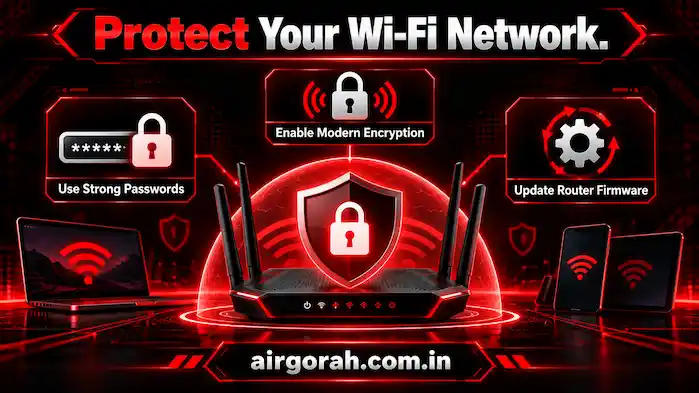
Choose a long, unique password for your Wi-Fi network. Avoid common words, personal details, and simple number patterns. Do not reuse the same password for your email or other accounts.
Use Modern Router Security
Check your router’s security settings. Use a modern option such as WPA2-AES or WPA3 when your router and devices support it. Avoid outdated security modes that offer weaker protection.
Update Your Router
Router updates can fix bugs and security issues. Check the maker’s instructions for updates and install them from a trusted source. If your router no longer receives updates, consider replacing it.
Review Connected Devices
Check the devices listed in your router settings from time to time. If you find an unfamiliar device, confirm whether it belongs to someone who uses your network. Then, change your Wi-Fi password if you suspect unwanted access.
Turn Off Features You Do Not Need
Review guest access, remote management, and other router features. Disable options you do not use when it is safe to do so. This can reduce the number of ways someone might try to access your network.
How to Use Airgorah for Authorized Testing
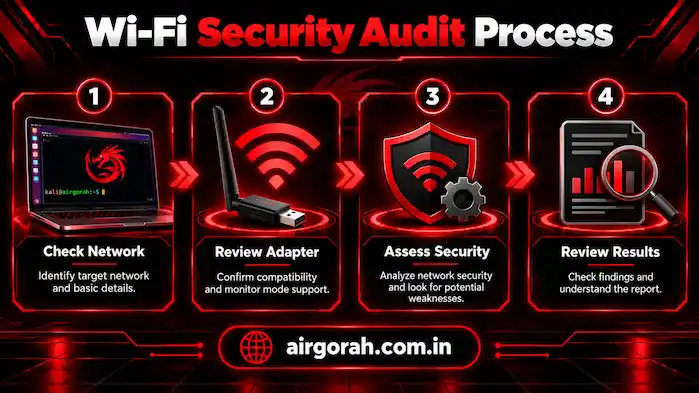
Before you start, confirm that you own the network or have clear permission to test it. Next, check your Linux system, required packages, and Wi-Fi adapter. Make sure the hardware supports the feature you want to use. Open the tool using the setup method for your version. Choose a supported test and review the results. If a feature does not work, check the error message and hardware needs before changing system settings.
Do not use the tool to access networks without permission. Also, protect any data you collect during a test. For a step-by-step overview, read our guide on how to use Airgorah.
Common Wi-Fi Testing Problems
Some problems come from missing packages, unsupported hardware, or the network setup. Check each cause before you try a new fix.
The Adapter Is Not Detected
Check whether Linux can see the adapter. Then, review the driver and confirm that it supports the feature you need. Some adapters work for normal Wi-Fi but lack support for advanced testing tasks.
Monitor Mode Does Not Work
Not every adapter or driver supports monitor mode. Check the hardware details and the project’s setup notes. If the adapter lacks support, you may need compatible hardware.
The Test Gives No Results
A test may give no results because of the network, hardware, or test settings. Confirm that you selected the correct network and that your adapter supports the task. Then, review any warnings shown by the tool.
Frequently Asked Questions
What Is Airgorah Wi-Fi Testing?
It refers to using the tool’s supported features to study wireless networks and check parts of their security.
Can Airgorah Find Any Wi-Fi Password?
No. Results depend on the password, hardware, available data, and test method. No tool can promise access to every network.
Does Airgorah Work on Android?
The main project targets Linux, and its standard project details do not confirm a native Android release.
What Wi-Fi Adapter Does Airgorah Need?
Some features need an adapter that supports monitor mode and packet injection. Support varies by model and driver.
How Can I Make My Wi-Fi Safer?
Use a strong, unique password, modern router security, and current firmware. Review connected devices and disable features you do not need.
Conclusion
Airgorah Wi-Fi Security can help users study wireless network activity and assess parts of their security setup. However, its features depend on Linux, compatible hardware, and the chosen test. Use the tool only with permission, protect any data you collect, and check your results with care. Strong passwords, modern router settings, and regular updates remain key steps in keeping a Wi-Fi network safe.